Dashboard
A quick renovation overview: the project’s main screen, or dashboard.
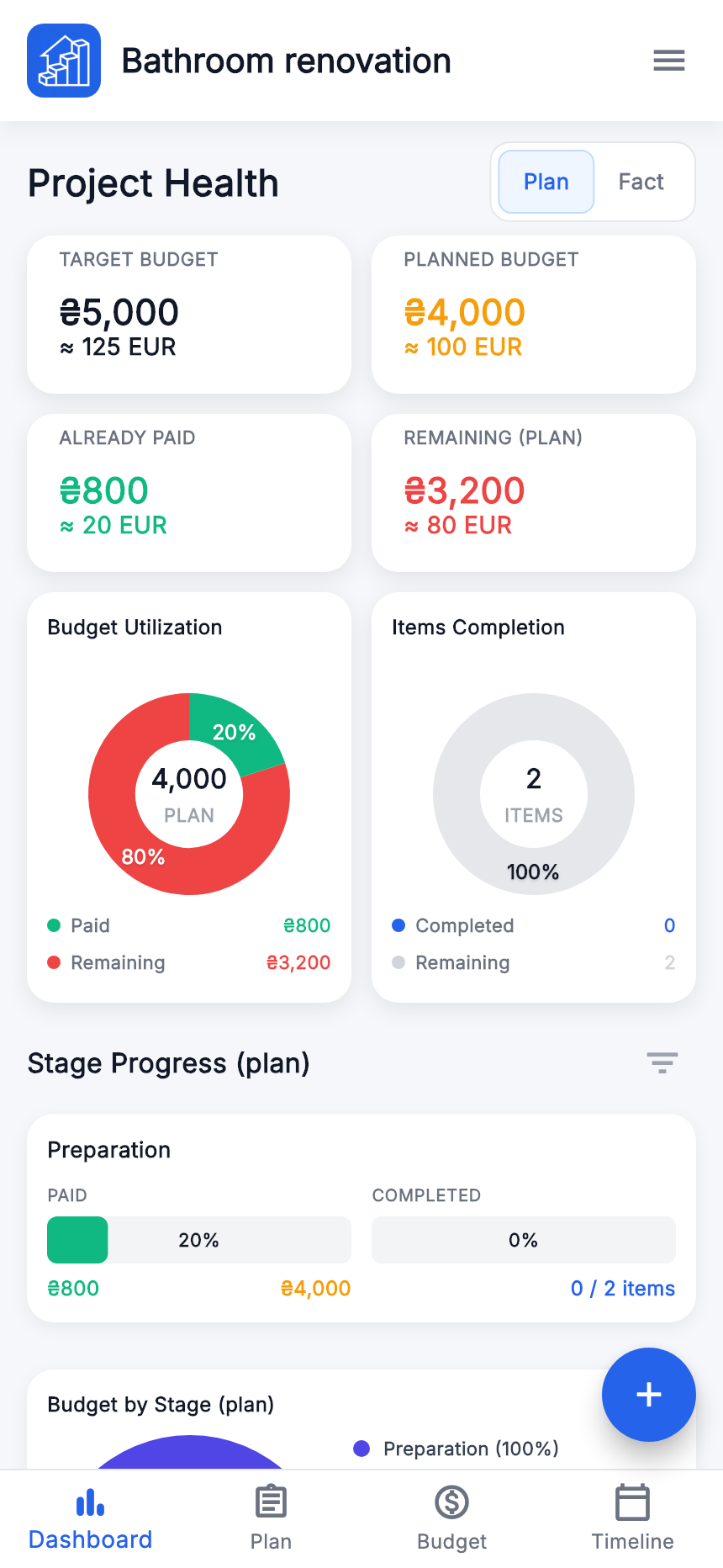
- Plan / Fact
- Choose the calculation basis. For unpaid items, the project’s “Fact” total still uses planned amounts.
- Main totals and budget usage
- Show the selected mode’s budget, already paid and remaining. The target budget is displayed separately.
- Item completion
- Work progress. It does not confirm payment.
- Stage progress and breakdowns by stage and tag
- Help identify where costs are concentrated and what is done. Scroll down the Dashboard; check the mode and selected stages.
To check a particular work item, open “Plan”.
Plan
The main list of renovation stages, work and materials.
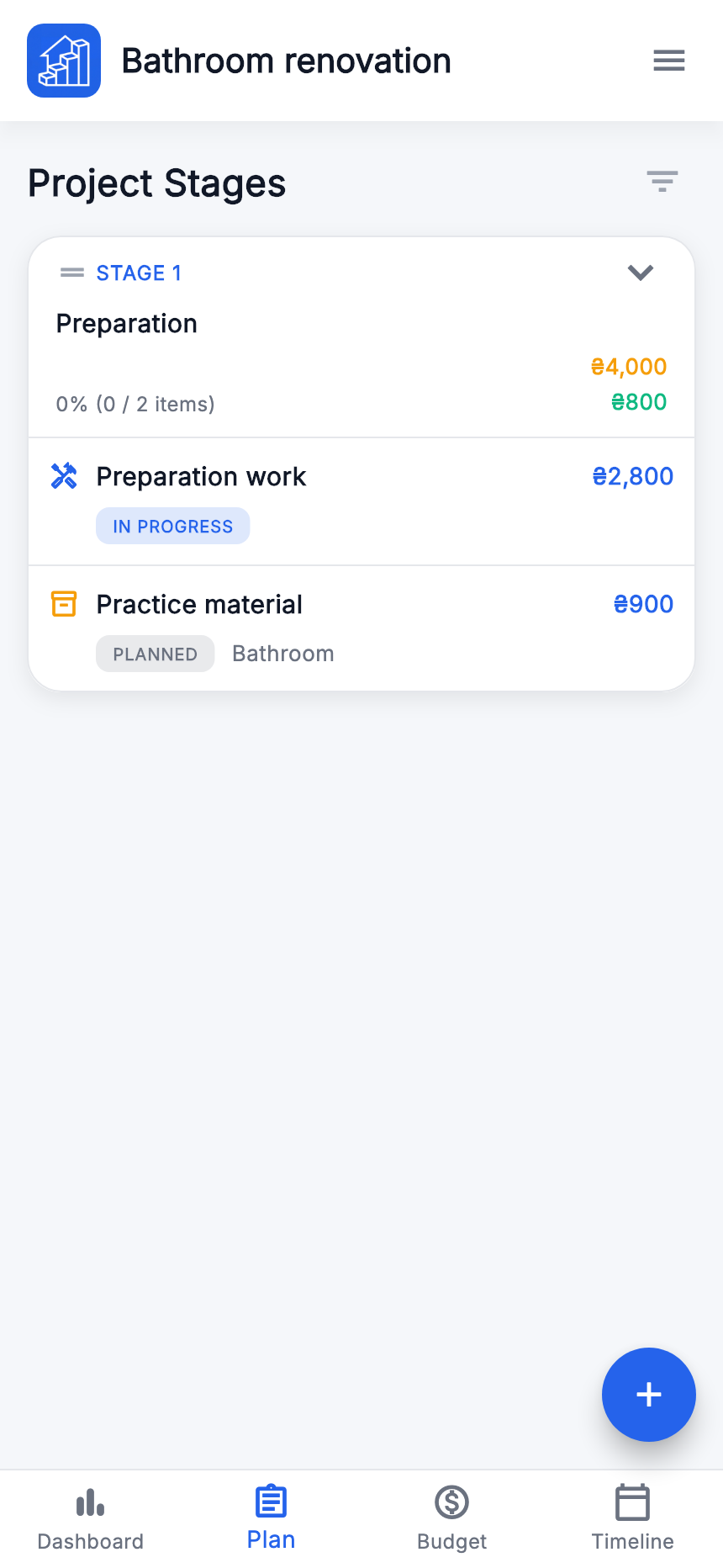
- Check the active project name at the top.
- Expand a stage with its arrow to see the items.
- Open an item to view it, then edit. Use “+” to add a stage or item.
If an item is missing, check whether its stage is expanded or filters are active. Confirm the correct renovation is open before creating a duplicate.
Budget
Check planned amounts, payments, prepayments and discounts here.
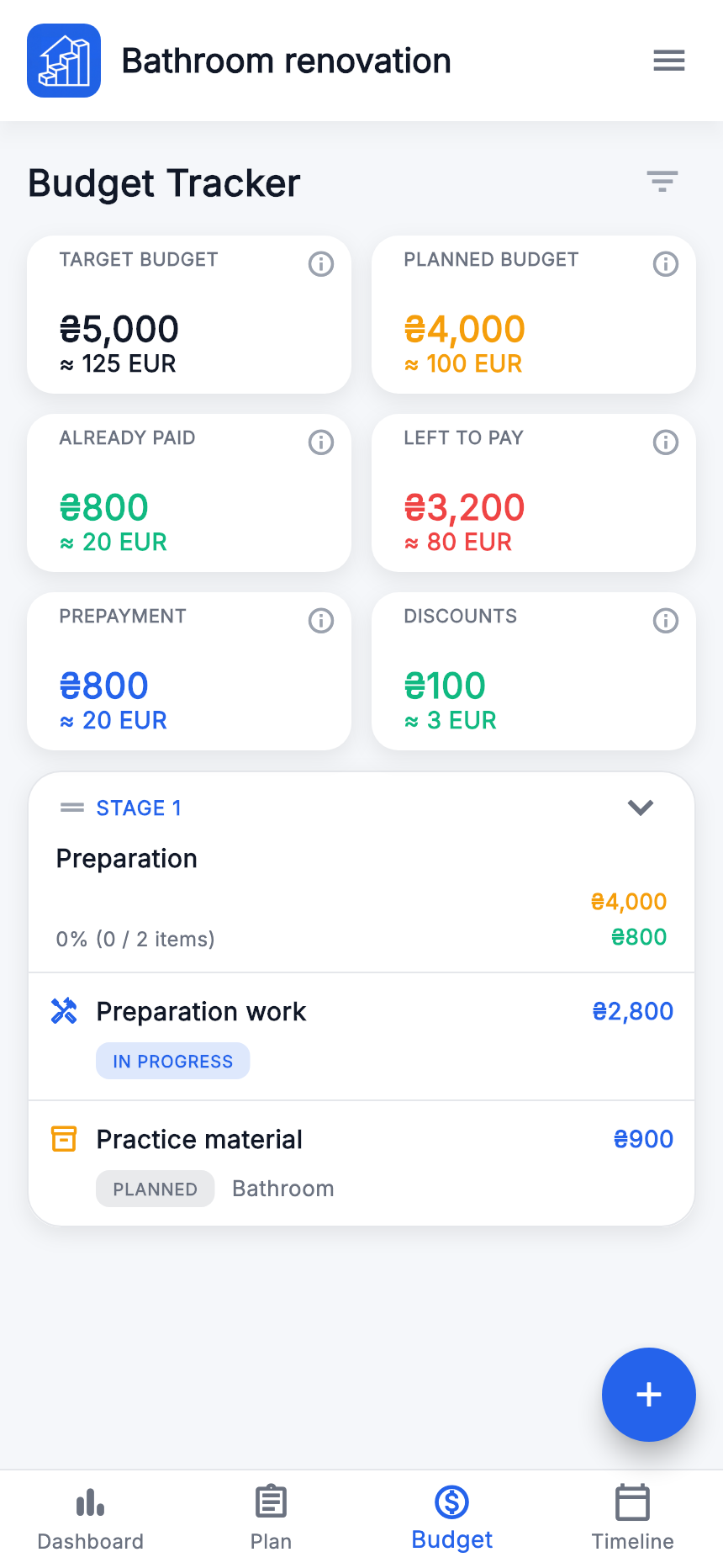
- Target Budget
- The chosen renovation limit: UAH 5 000.
- Plan
- The total planned costs of included items: UAH 4 000.
- Fact on the Dashboard
- Uses the planned amount for an unpaid item and the final fact amount for a fully paid one.
- Already paid
- Prepayments on unpaid items plus full fact amounts on paid items.
- Remaining
- The selected mode’s budget minus already paid. On the Budget page, “Remaining to pay” uses the planned basis, like “Remaining (plan)” on the Dashboard.
Before and after full payment of the work
There are two items: work with plan 3 000, price 2 800 and prepayment 800; material with plan 1 000 and price 900, still unpaid. All amounts below are in Ukrainian hryvnias.
| Measure | Before paying the work | Work paid in full |
|---|---|---|
| Plan | 4 000 | 4 000 |
| Fact | 4 000 | 3 800 |
| Already paid | 800 | 2 800 |
| Remaining (Fact) | 3 200 | 1 000 |
| Remaining (plan) | 3 200 | 1 200 |
For the second results column, enable “Paid” for the work item only and save it. The material remains unpaid, so “Fact” still includes its 1 000 planned amount.
Before paying the work, the balance against recorded final prices is 2 800 + 900 − 800 = UAH 2 900. This differs from “Fact” remaining, which uses planned amounts for unpaid items. Compare matching modes and filters.
Timeline
A calendar view of stage dates.
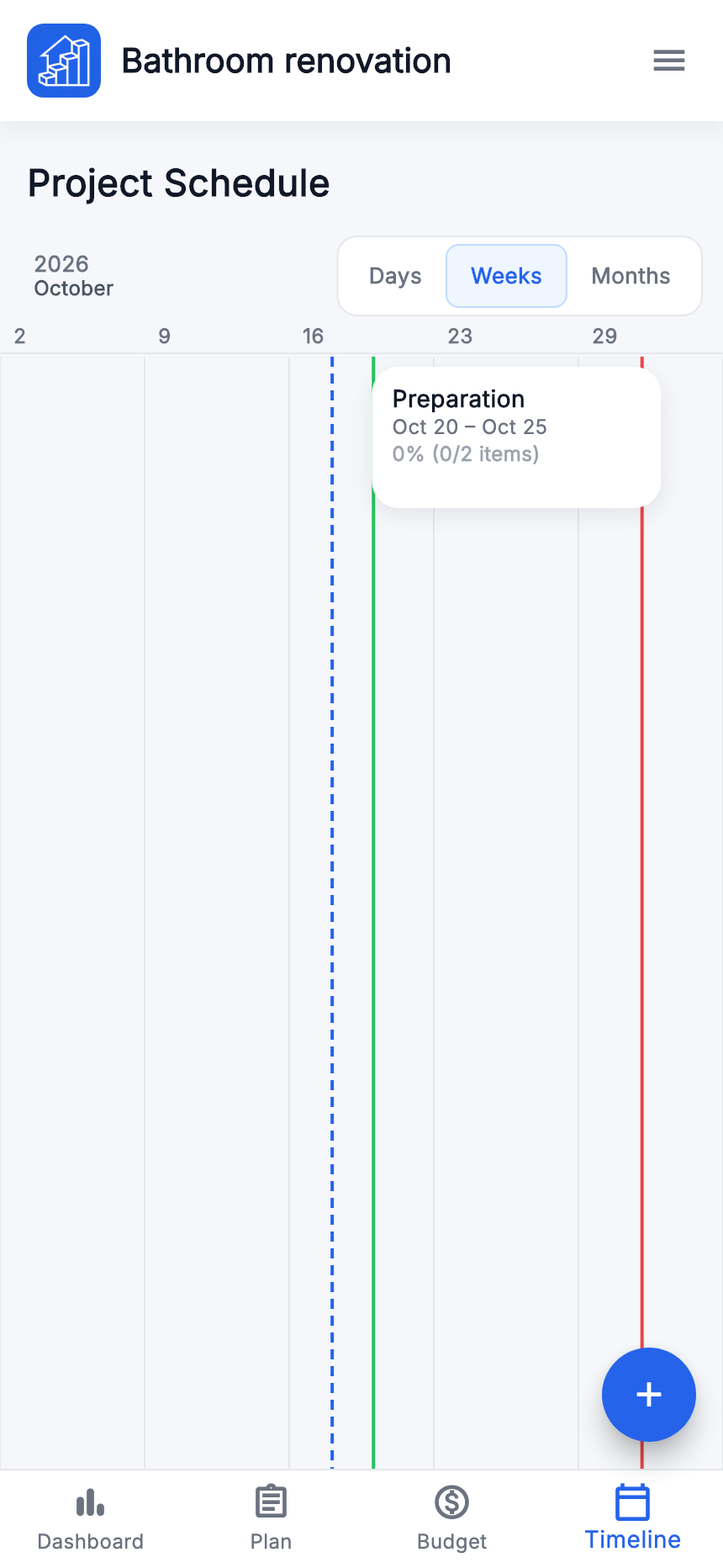
- Open “Timeline” in the bottom menu.
- Choose “Days”, “Weeks” or “Months”.
- Find the stage and compare its dates with others. Edit the corresponding stage to change its dates.
Missing dates give an incomplete schedule. Our project runs from 20 October to 2 November; the stage runs 20–25 October. Stage completion depends on item completion.