
Currencies and exchange rate
An alternative currency provides an additional display of amounts in another currency.
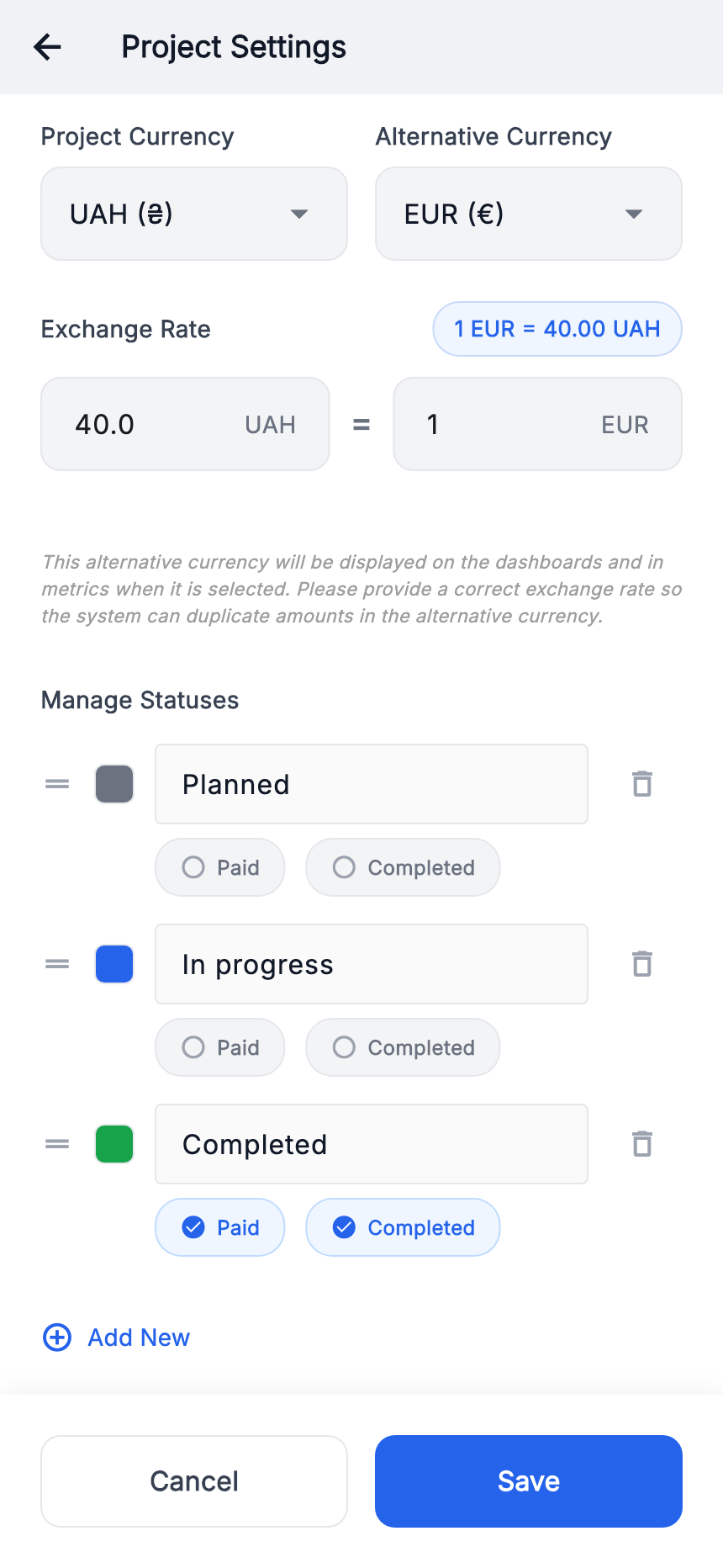
- Check “Project currency” and choose “Alternative currency”.
- Fill both sides of “Exchange rate”. Our example: 40 UAH = 1 EUR.
- Check the conversion label, press “Save” and review alternative amounts on the Dashboard and metrics.
At this teaching rate, 4 000 UAH = 100 EUR. The rate is invented, not a market rate. Renaming the main currency alone does not convert every recorded price.
Tags
Tags group items, for example by room or type of work.
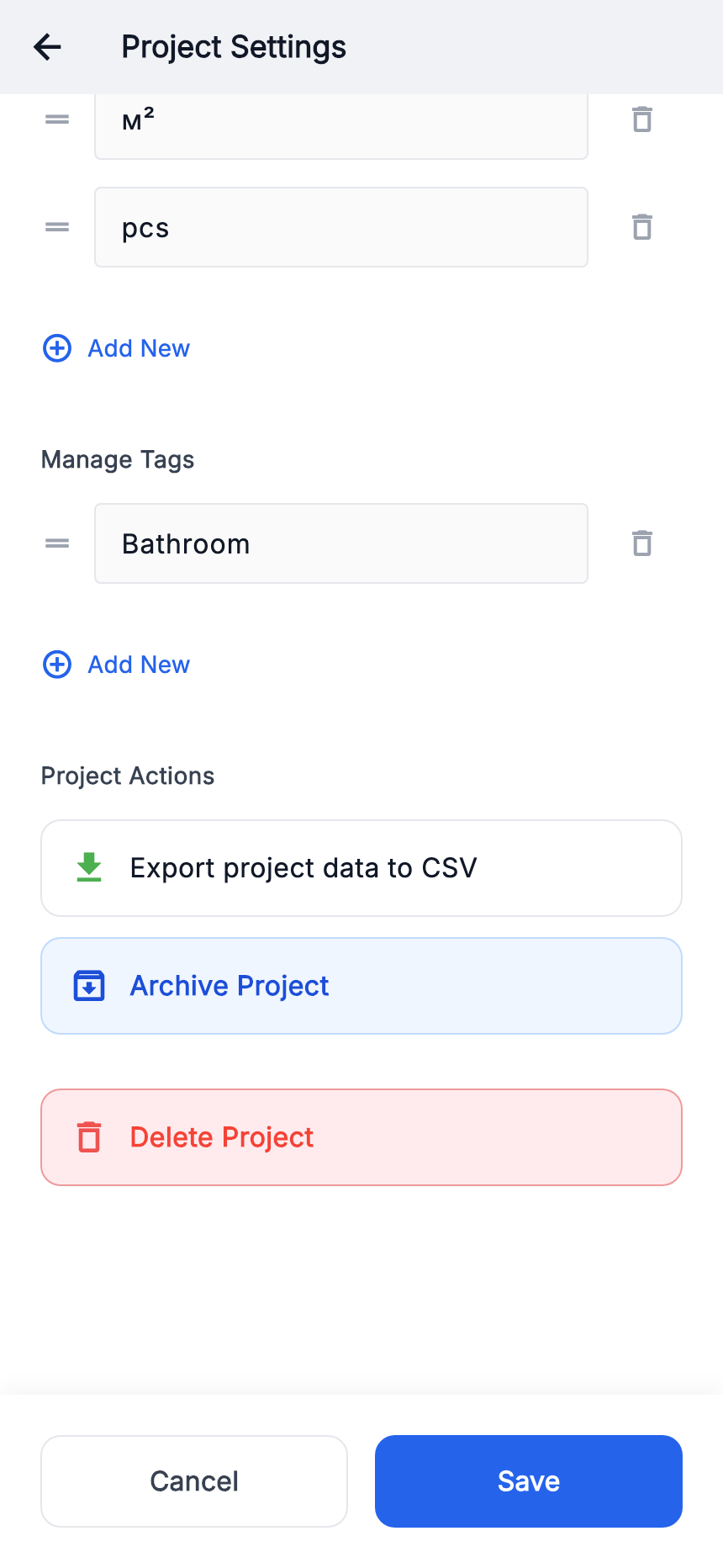
- Scroll settings to “Tag management”.
- Add a new tag, enter a short name and save settings.
- Edit an item, select this tag and save the item.
Use consistent names. Our material has the “Bathroom” tag.
Units of measurement
A unit explains what a quantity and price refer to: pieces, length or area.
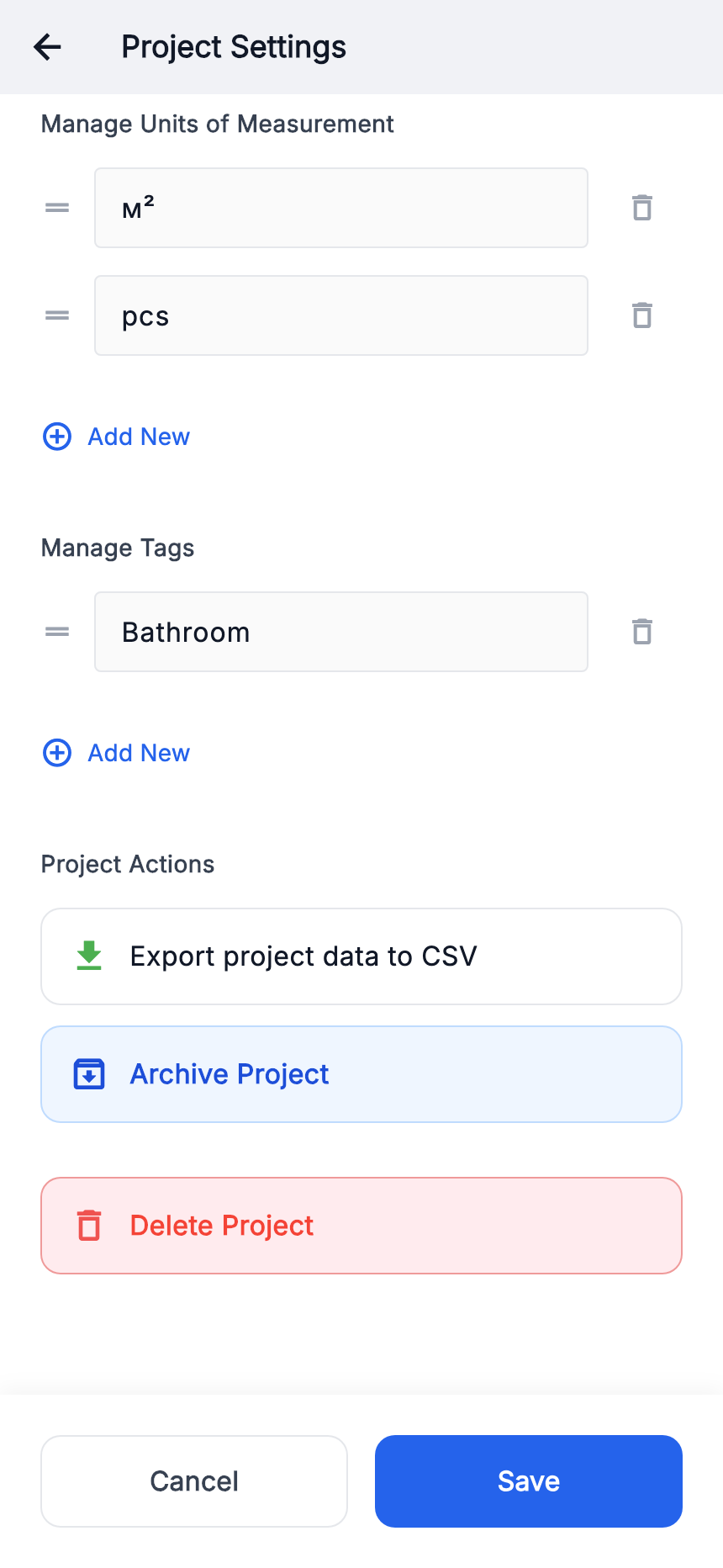
- Scroll settings to “Unit management”.
- Add the required unit and save settings.
- In the item form, enable “Add quantity and price” and choose that unit.
10 m² × UAH 100/m² = UAH 1 000 before discount. Quantity and price need the same unit; an “m²” label does not convert length to area.
Export to CSV
Save a tabular snapshot of the project for use outside the app.
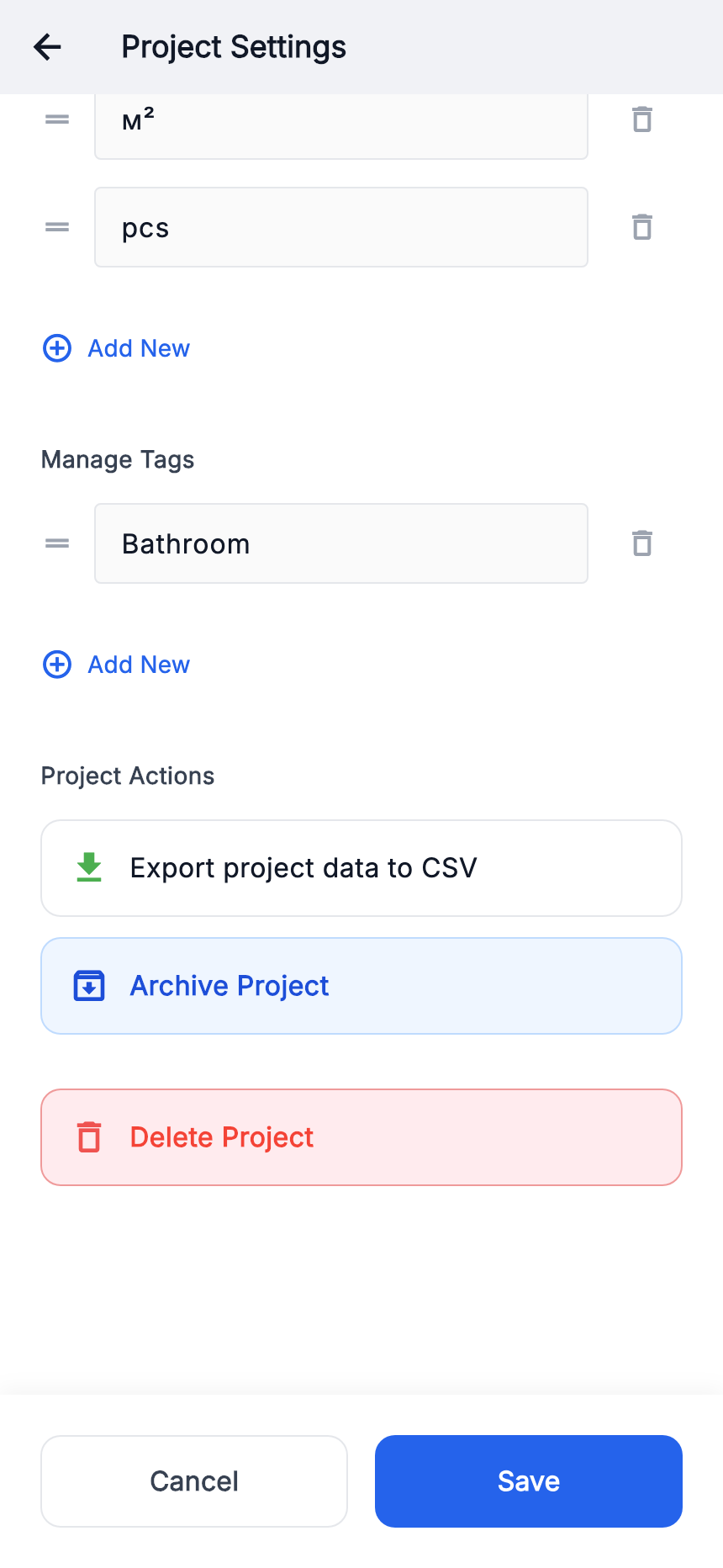
- Scroll project settings to “Export project data to CSV”.
- Press the button and confirm export.
- In the system dialog, choose where to save or share the file.
- Open the CSV and check project, stage and item data.
Later app changes do not update an exported file. A CSV is not a complete backup with attachments.