Project fields
Enter these settings when creating the project. To change them later: ≡ menu → “My projects” → the gear beside the renovation.
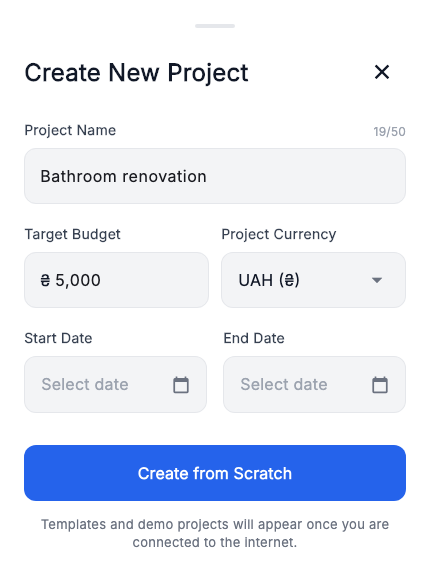
- Project Name
- For example, “Bathroom renovation”. It distinguishes your renovations.
- Target Budget
- Your intended spending limit: UAH 5 000 in the example. It is separate from the total planned amounts of items.
- Project Currency
- The main currency for prices: UAH in our example. Check it before entering costs.
- Start date and end date
- The planned renovation period. The end must not precede the start. The schedule also needs stage dates.
Set additional currency displays in “Currencies and exchange rate”.
Stage fields
A stage defines a group of work and its planned period.
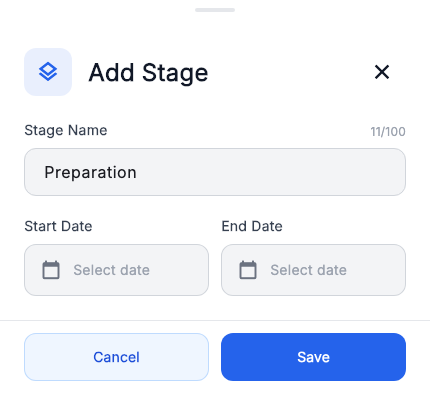
- Stage Name
- A short name for part of the renovation, such as “Preparation”.
- Start date and end date
- This stage’s period on the schedule. Update the dates when timings become clearer.
- Planned amount in the stage list
- The calculated total of included items: 3 000 + 1 000 = UAH 4 000 here. Change amounts in the work and material items themselves.
If the total is unexpected, check the items’ stage assignments and “Exclude from budget”.
Item fields
Start with a name, type, stage and planned amount. Add other fields as the information becomes available.
General details and state
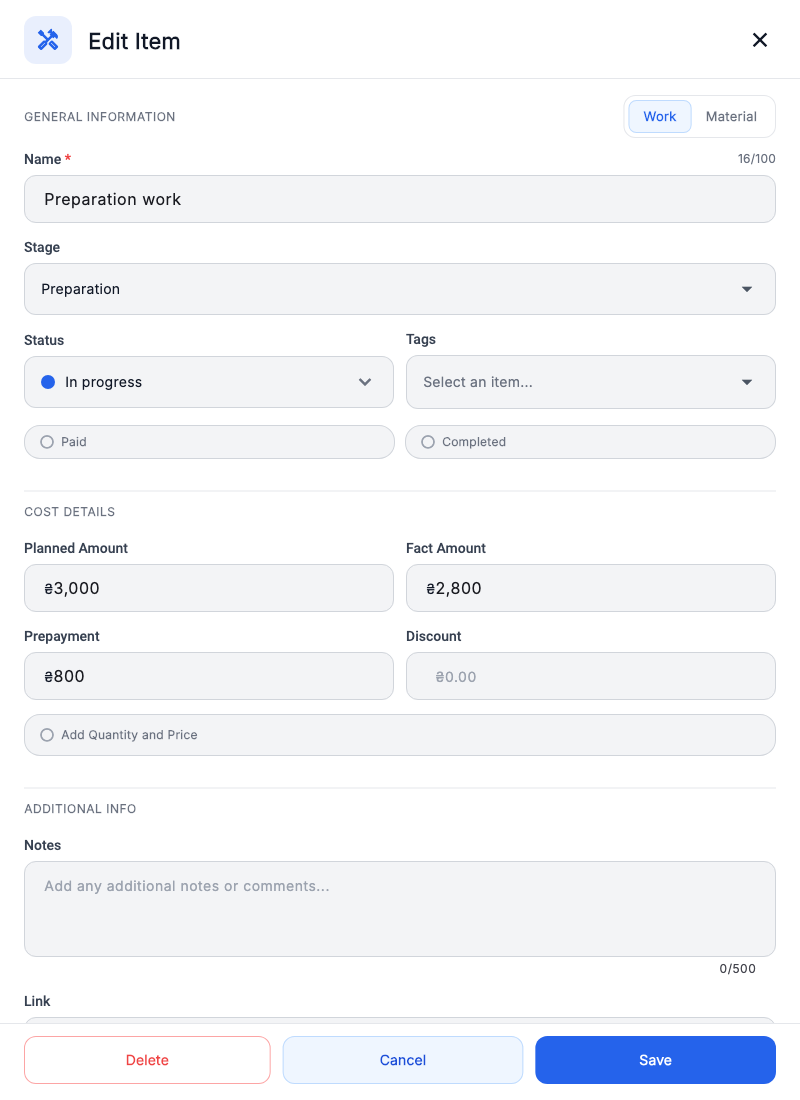
- Name, type and stage
- What you are buying or doing, and which part of the renovation it belongs to.
- Status
- The current state, such as “In progress”. Selecting a status may change payment and completion switches; check them.
- Tags
- Group items, for example under “Bathroom”. Manage the list in project settings.
- Paid / Completed
- Full payment and completion are separate switches. Enter a prepayment for partial payment; enable “Paid” after full settlement.
Amounts, quantity and discount
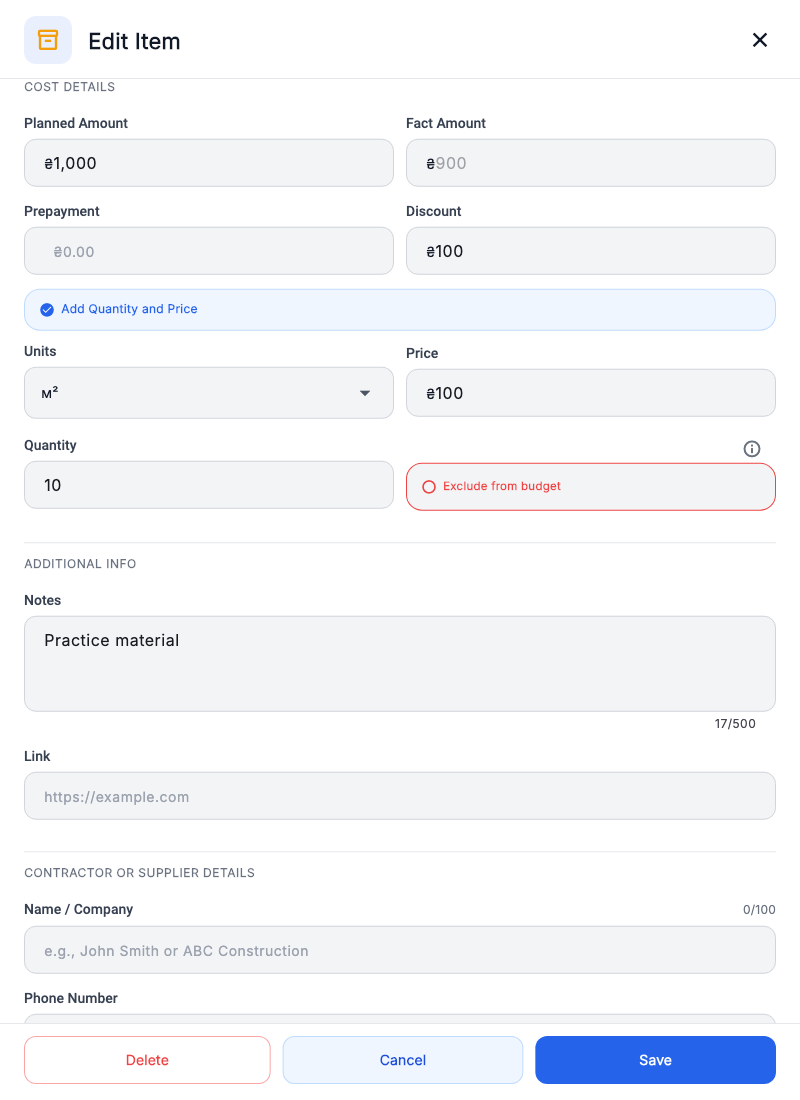
- Planned Amount
- The expected cost of the item: UAH 1 000 for our material.
- Fact Amount
- The item’s recorded final price. Enter it manually or calculate it using quantity and price. It is different from the project’s overall “Fact” total.
- Prepayment
- The portion already paid: UAH 800 for our work item. After full payment, it is not added to the full price again.
- Add Quantity and Price
- Shows unit, unit price and quantity. Fact amount = price × quantity − discount.
- Discount
- A monetary amount, not a percentage: 100 × 10 − 100 = UAH 900. If a manually entered final price already includes the discount, do not subtract it again.
- Exclude from budget
- The item stays in the plan but does not contribute to financial totals.
Notes and attachments
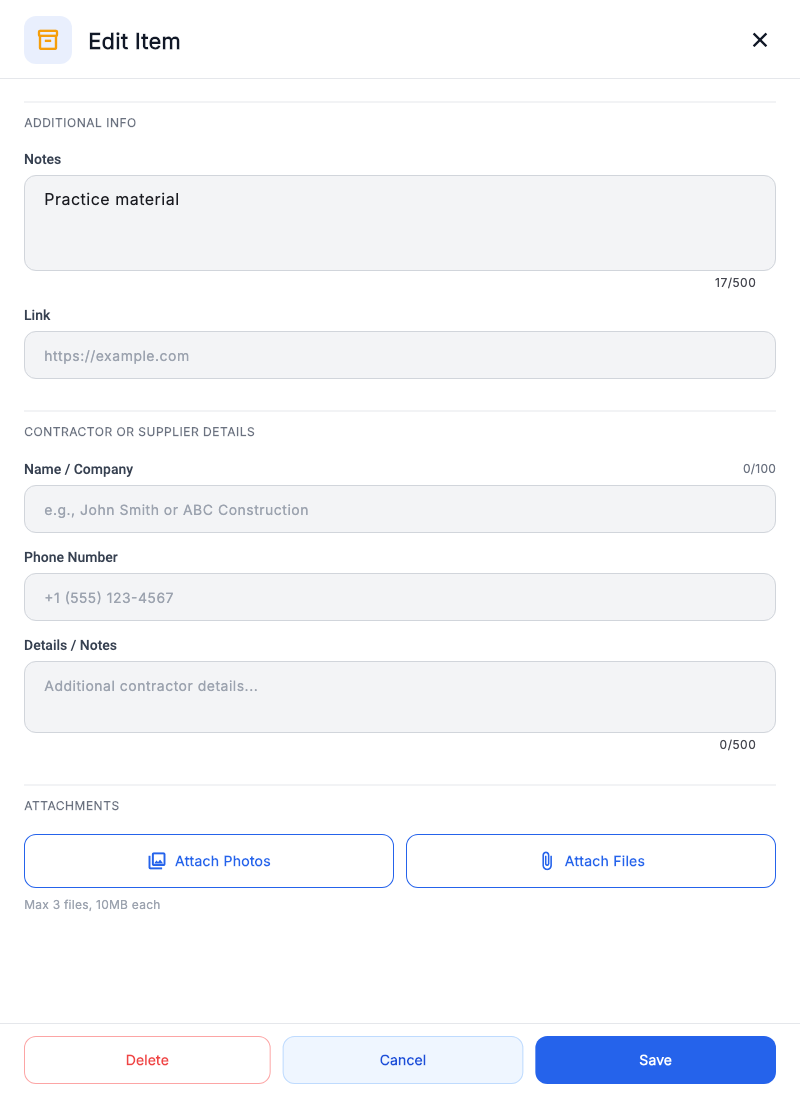
Use “Additional information” for a note or link; contractor or supplier details appear below.
- Scroll the form to “Attachments”.
- Press “Add photos” or “Attach files” and select a document.
- Wait for preparation, save the item and reopen it to check.
Attachment actions need internet access. Current limits appear beside the buttons. The illustration shows an empty section before a file is added.
“Budget” explains how these values contribute to totals.