
Create a project
A project is one renovation with its own work, budget and dates. Throughout this guide we use “Bathroom renovation”, a practice project with a UAH 5 000 target. These are teaching figures, not a renovation quotation.
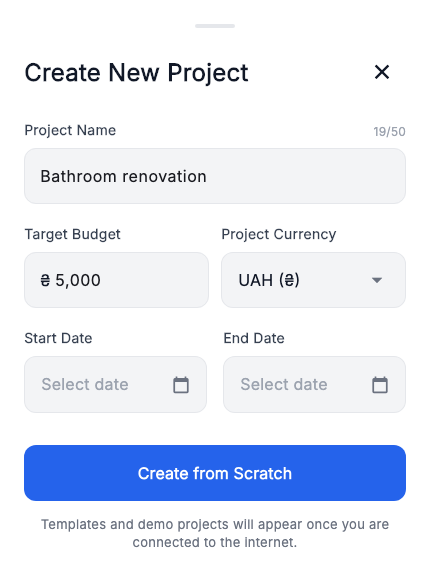
How to start
- Open the ≡ menu at the top of the app → “My projects” → “Create new project”.
- Enter “Bathroom renovation”. Check the UAH currency and enter a target budget of 5 000 for our example. You can add dates later.
- Choose “Create from scratch”. Check the active project name at the top.
Result: an empty project where you can add a stage. Templates and demos are other starting options; replace their data with your own.
Add a stage
A stage groups related work and materials, such as “Preparation”, “Installation” or “Finishes”.
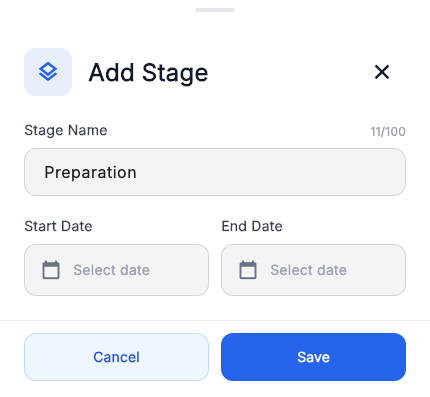
How to add it
- Open “Plan” in the bottom menu → press “+” → “Add stage”.
- Enter “Preparation”. If the schedule is known, select start and end dates.
- Press “Save”.
Result: the stage appears in the plan. You do not enter a separate stage price: its planned total comes from included items.
For our schedule, we later set the stage dates to 20–25 October 2026.
Add an item
An item is one work task or material. Start with two items to see how the budget is built.
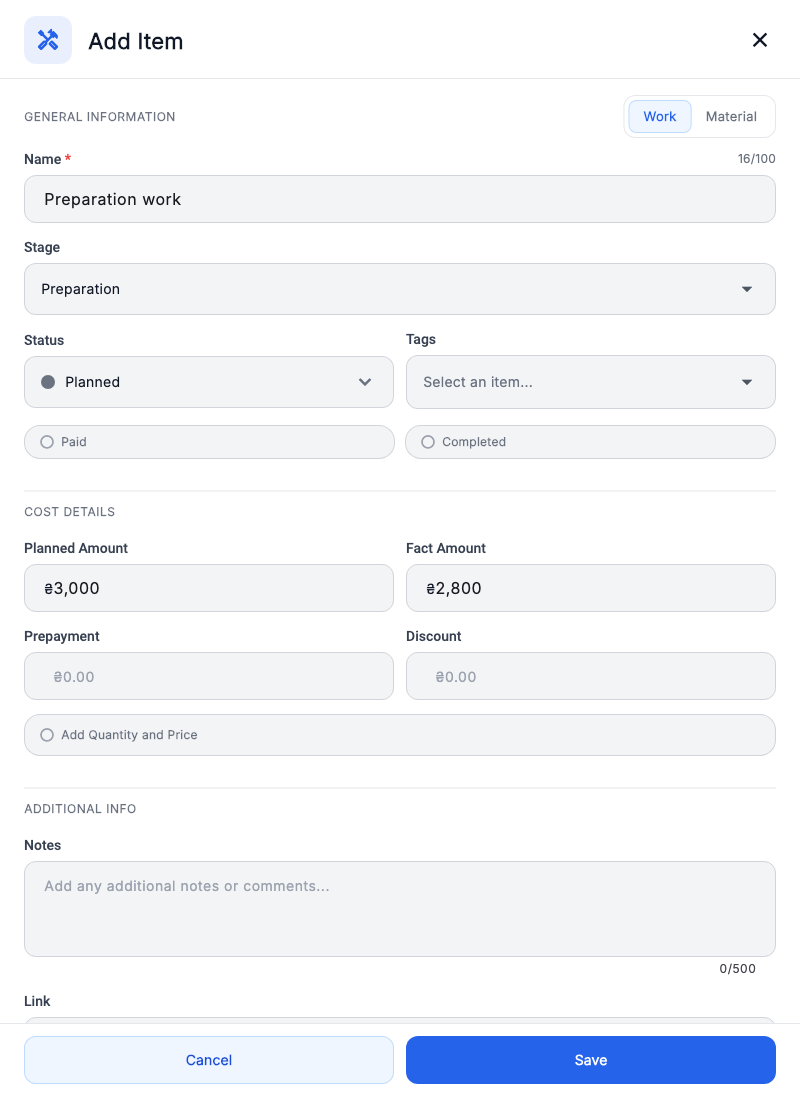
Your first work item
- In “Plan”, press “+” → “Add item”.
- Choose the “Work” type, enter “Preparation work” and select the “Preparation” stage.
- Enter a planned amount of 3 000. If the price is known, enter a fact amount of 2 800.
- Press “Save”. Open the stage and check the new item.
You can add status, prepayment, tags and documents later. To change a saved item, open it and choose edit.
Complete the practice example
Edit the work item: choose “In progress”, add an 800 prepayment and leave “Paid” and “Completed” off.
Add “Practice material” with a planned amount of 1 000. Enable “Add quantity and price”: 10 m² × UAH 100, discount UAH 100. The fact amount is UAH 900. The item is still unpaid.
The project now has a UAH 4 000 plan and UAH 800 already paid. Check totals in “Budget” and field meanings in the item reference.